Payments
Legal entities and banks, individuals, the shop currency, the public address, the payment QR on the invoice and the payment terms.
Updated:
Settings → Payments establishes who issues the documents (your companies), how individuals and legal entities pay, which currency the shop works in, the public address customers return to after paying online, whether the invoice carries a payment QR and what payment terms you offer. The online payment processors (maib, Stripe, PayPal, monobank, NETOPIA) are connected in Integrations.
For Legal Entities
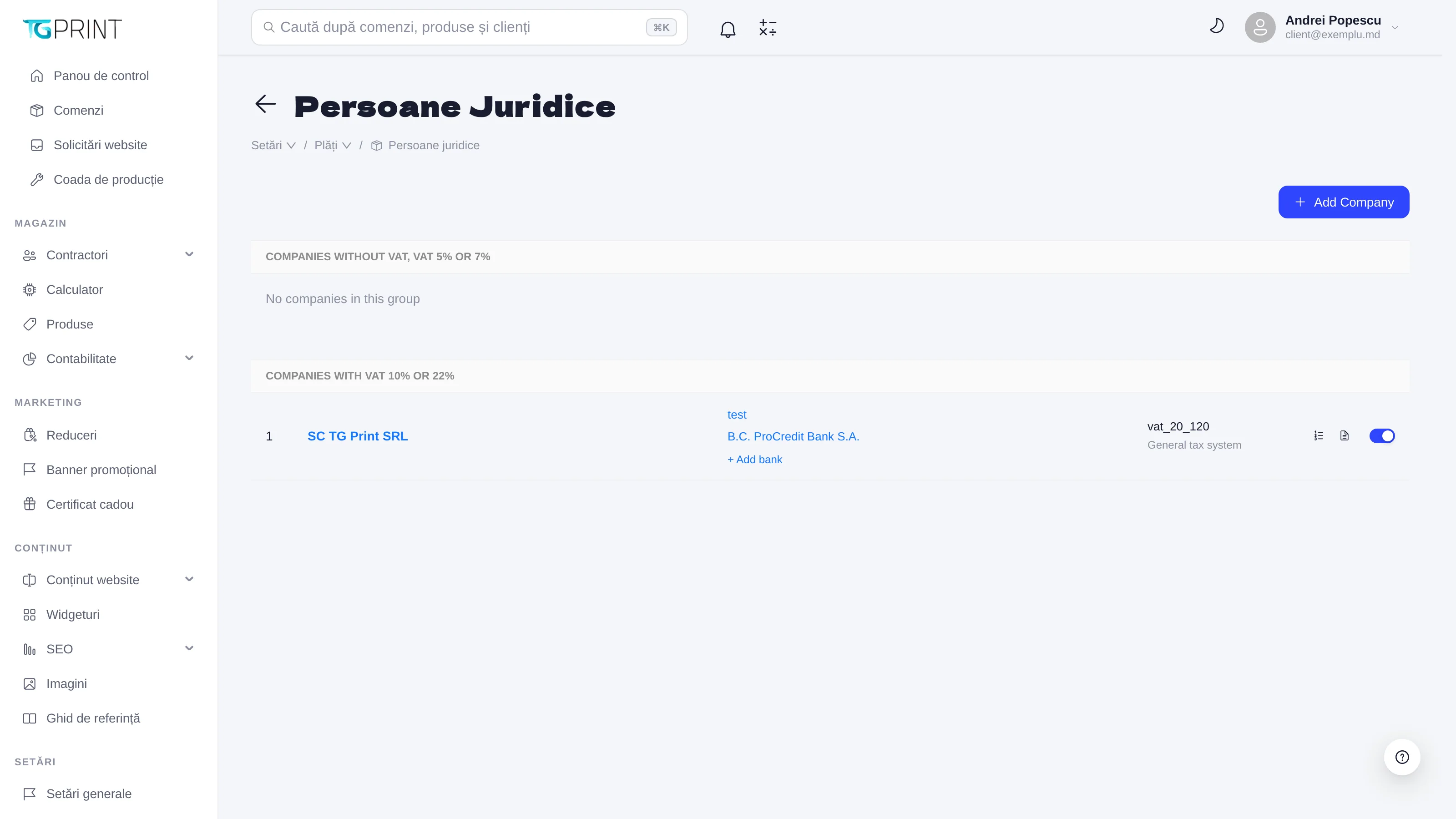
For Legal Entities holds your companies — the suppliers shown on invoices and acts. They are grouped by VAT regime: Companies without VAT, VAT 5% or 7% and Companies with VAT 10% or 22%. Each company has its identification data, the tax system (for example General tax system) and one or several banks (+ Add bank: the bank, the account, the code). Add Company adds a new company; clicking one opens it for editing, including its banks. The active company appears as the supplier on the invoice generated from the order page — see Accounting.
The banks of the active company marked Enabled appear on the payment invoice under Bank details: the Current account (enter the IBAN here), the bank name and the BIC. The payment QR on the invoice is built from the same data (see "Payment QR on the invoice" below), so check the IBAN digit by digit.
For Individuals
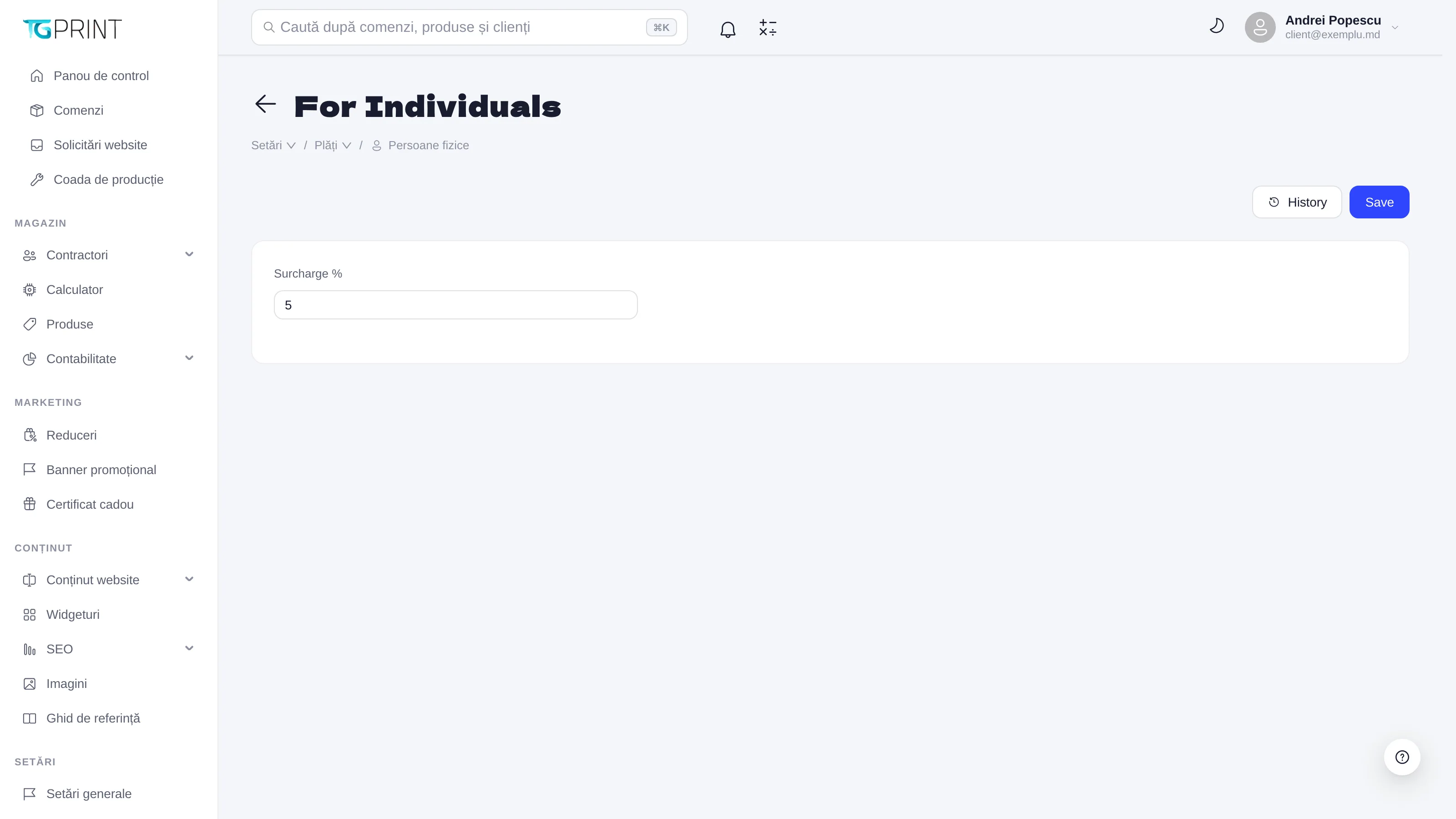
For Individuals has a single field: Surcharge % — a percentage surcharge applied to the orders of individuals (for example the payment processor's commission, if you want to pass it into the price). History shows who changed the value and when; Save applies it.
Shop currency
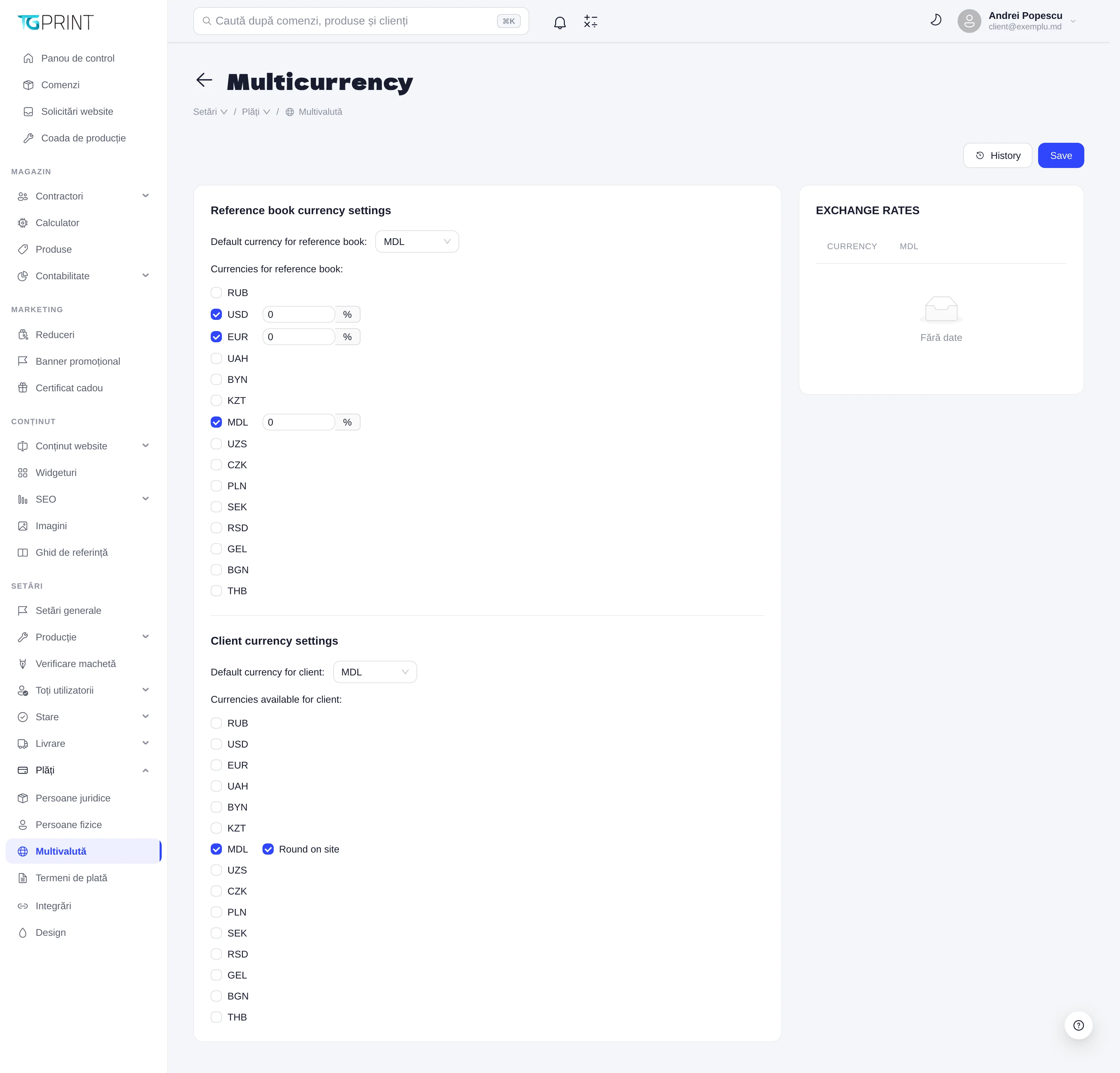
The Shop currency is the single currency the site works in: every price — the reference book, products, delivery, discounts, bonuses and gift certificates — is in it, and every new order records it. Pick the Currency from the list and press Save changes; on a change, a confirmation reminds you that changing the currency does not convert prices: the numbers stay the same, only their currency changes, and orders already placed keep their currency. The site shows the new currency within a minute.
Under the field, the Online payments in (chosen currency) list shows which processor can charge it: MAIB MDL only, monobank UAH only, NETOPIA RON and EUR, Stripe any currency in the list, PayPal the currencies it accepts directly (EUR, USD, GBP…) or MDL converted at a rate. A processor that cannot charge the shop currency does not appear at checkout.
The PayPal rate appears only for a shop in MDL: PayPal does not charge Moldovan lei, so the order total is converted to EUR or USD at the rate entered here (MDL for 1 EUR, MDL for 1 USD, with Save rate). Without a rate, PayPal does not appear at checkout.
Shop public address
The Shop public address is the address customers open your site at (for example https://your-print-shop.com). Payment processors use it to send the customer back to the site after paying and to send you their payment notifications; the webhook addresses you copy into your Stripe and PayPal accounts are built on it too.
- Type the address in the Public address field —
https://with your own domain; the path is dropped (https://your-print-shop.com/en/becomeshttps://your-print-shop.com). If you opened the admin on the shop's own domain, the Use this site's address button fills it in with one click. - Press Save changes. An address without
https://or without a domain is refused with a message under the field.
Without a public address, online payment (card, PayPal) does not appear at checkout, and neither does the maib MIA QR on the invoice — the yellow Not set note reminds you. If the address is set in the server configuration, the section says Now in use: … from the server configuration; saving an address here lets you manage it from the admin.
Note. When the platform is updated, a shop that was already taking online payments keeps the address it was using; check it here once.
Payment QR on the invoice
When on, the Print a payment QR on the payment invoice switch adds to the invoice, next to Bank details, a QR for the order's remaining amount due — the customer scans it with their banking app and pays without copying the IBAN. The standard follows the order currency:
- MDL — maib MIA instant payment: a code issued by maib for each invoice, payable from any Moldovan banking app. It needs the maib MIA QR integration on and configured (see Integrations); the payment is recorded on the order by itself, as a Bank transfer, and the order becomes paid without you doing anything.
- EUR — the SEPA credit transfer QR (the EPC069-12 standard), from the company's first bank with a valid IBAN.
- UAH — the National Bank of Ukraine QR (format 003), from a Ukrainian IBAN (
UA…) and the company's fiscal code (ЄДРПОУ).
For other currencies the invoice shows only the bank accounts. The code is left out of a fully paid invoice and whenever data is missing (no valid IBAN, no fiscal code, maib MIA off) — the invoice still prints, without the code. The SEPA and NBU codes carry the amount: the payment reaches you as an ordinary transfer, which you register on the order like any transfer; only the MIA code is recorded automatically.
Payment terms
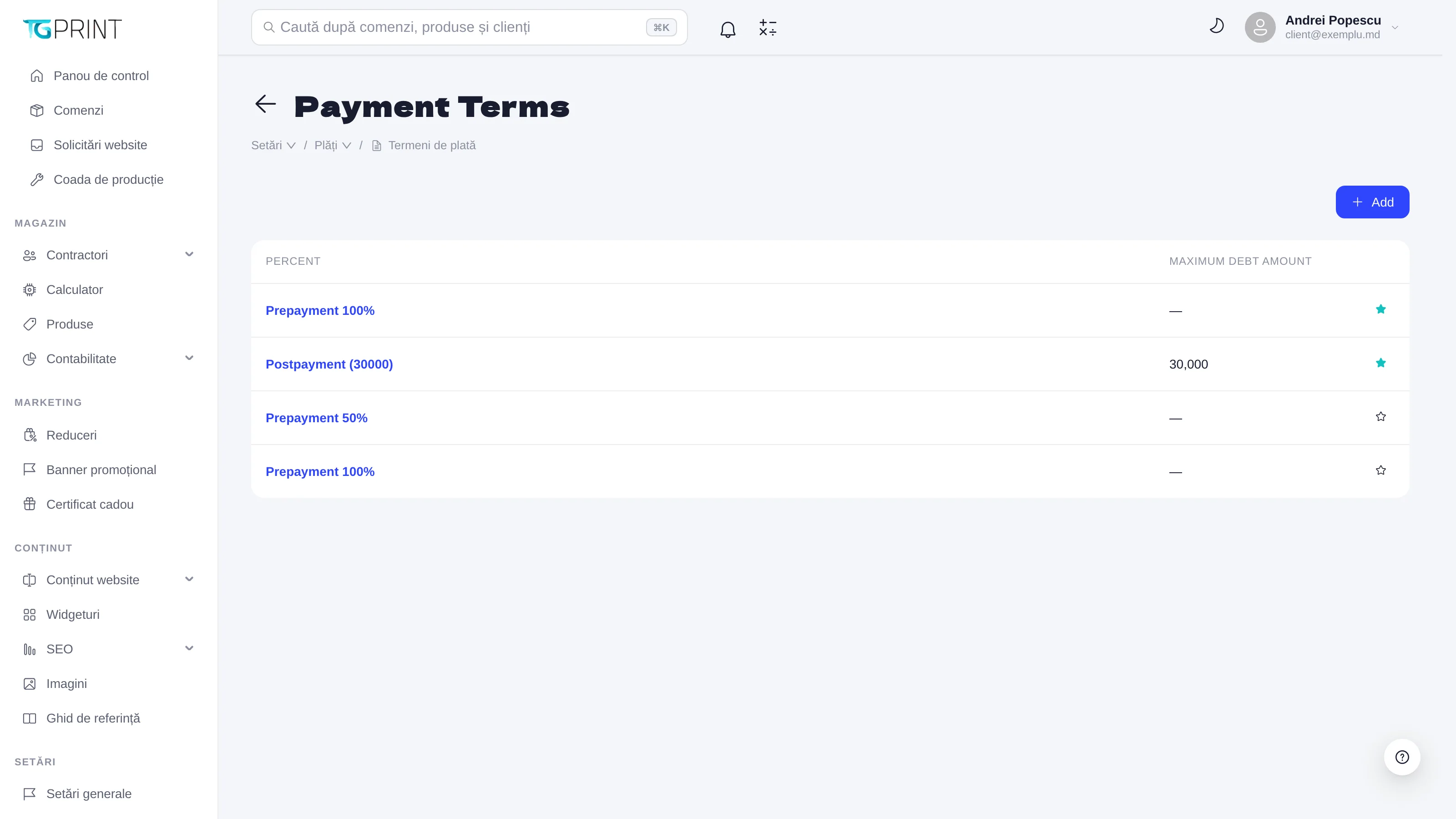
Payment Terms are the payment conditions you can grant to business customers: Prepayment 100% (full payment in advance), Prepayment 50% (a down payment), Postpayment (30000) (payment after delivery, with Maximum debt amount — the debt limit up to which new orders are accepted). Add creates a term; you assign it to an organization from its card (Payment Terms) — see Customers, organizations and groups. At checkout, a business customer with Postpayment can place the order on invoice without paying immediately, as long as their debt is below the limit; the current debt is visible in the customer card, Finances → Debt.
Note. VAT (the rate, included/added) is configured in General settings, not here. Here you only group the companies by their VAT regime, so that the documents are issued correctly.