Integrations
Connecting the platform to online payments, couriers and other external services.
Updated:
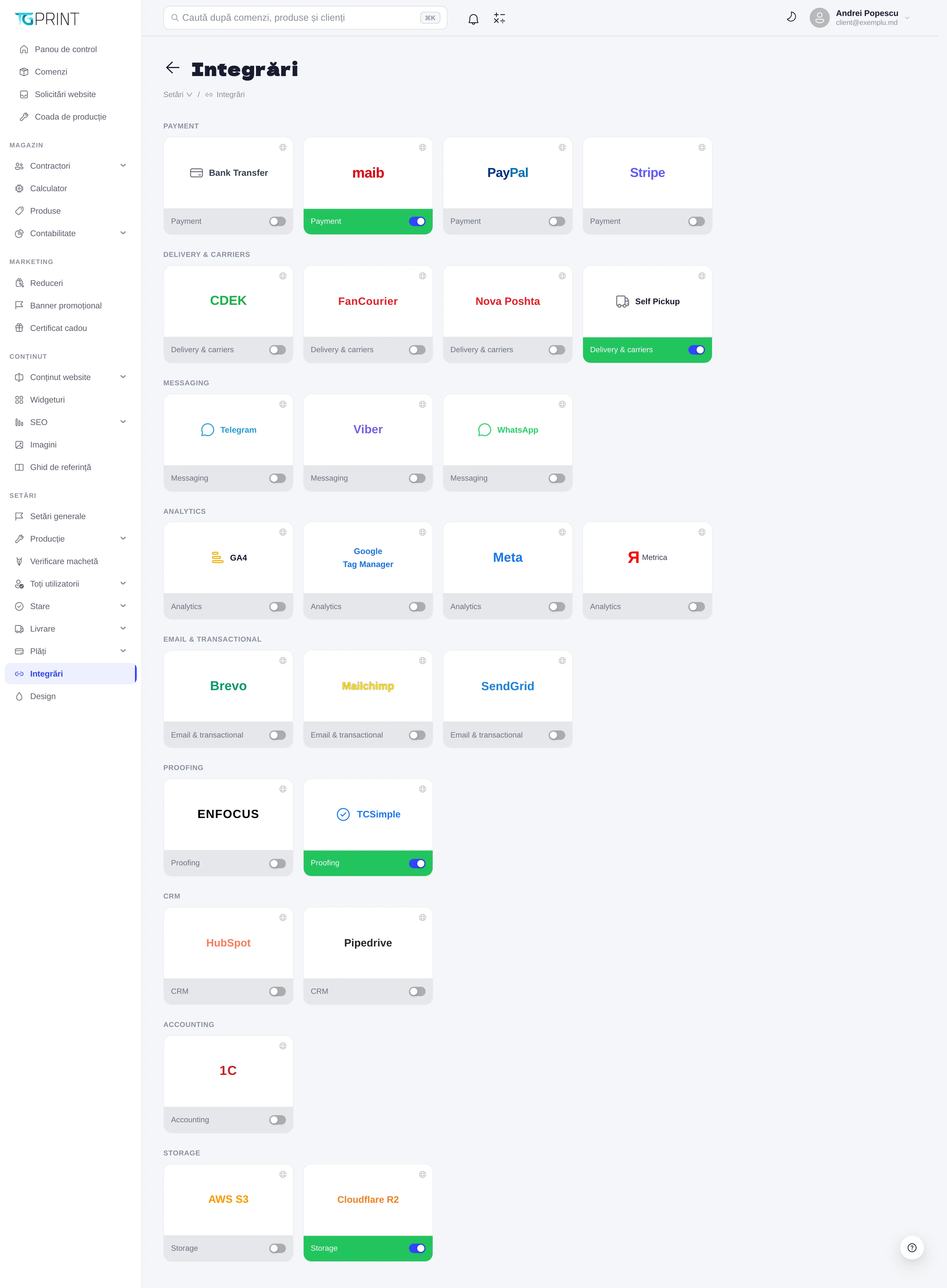
Settings → Integrations is where you connect the platform to services outside it: payment processors, couriers, messaging, analytics, email and artwork checking. Each integration is a card with the provider's logo, the markets the provider operates in and the state of the integration. For the integrations that work, the card has an activation toggle and, as a rule, opens the configuration page with the credentials the provider requires; the cards of those that are set up on the server or do not exist yet have no toggle (see "Markets and states", below). Inactive integrations do not appear anywhere on the storefront.
The groups
- Payment — Cash and Bank transfer (the offline methods; they are on by default, and if you turn them off they disappear from checkout; their cards have no configuration page, only a toggle; the transfer uses the bank details from Payments → For Legal Entities), then the online processors: maib (card, in MDL), maib MIA QR (the payment QR on the invoice, in MDL), monobank (card, in UAH), NETOPIA Payments (card, in RON and EUR), Stripe (card and local methods, in any shop currency) and PayPal. An online payment method appears at checkout only if the integration is active, all the keys are filled in, the shop has its public address set and the processor can charge the shop currency; if the currency does not fit, the card says so under the state. When several processors can take cards, the customer is sent to the local one — maib for MDL, monobank for UAH, NETOPIA for RON/EUR — and Stripe covers the other currencies. A payment the processor confirms is recorded on the order's payments by itself. See "Online payments" below.
- Delivery & carriers — CDEK, FanCourier, Nova Poshta, Nova Post, sameday, InPost, Packeta and DHL Express (at checkout: the carrier's localities, branches / lockers and tariff; on the order page: the AWB (waybill), its label, tracking and cancellation) and Self pickup (the global toggle for self-pickup — when it is off, the pickup methods disappear from the storefront and from the admin panel). See Delivery.
- Proofing — TgprintArtworkCheck: the automatic checking of the artwork uploaded by customers, done on the platform's own server, with no outside service (see "TgprintArtworkCheck", below); ENFOCUS is a connector still in development.
- Messaging — TgprintChat, the TGPRINT chat, which reads the shop's catalogue through its signed API; it configures itself: when you switch it on from the list, the key, the site address and the webhook addresses are linked on both sides (the fields on its page remain for a manual change). Telegram (bot), Viber (bot) and WhatsApp (business account) are still in development: their cards have no toggle and do nothing.
- AI — OpenAI, Claude, Gemini: connect an AI provider for the admin's AI features (the SEO fields, product descriptions, translating the multilingual fields). The page asks for the API key (it stays on the server and is never shown again), the model — picked from those the key can use, after Test the key and load the models — and, if you have switched on several providers, which one is the Default AI provider.
- Analytics — GA4, Google Tag Manager, Meta (Pixel), Metrica (Yandex): each card asks for an identifier — the GA4 measurement ID (
G-…), the Tag Manager container ID (GTM-…), the Meta Pixel ID or the Metrica counter number — and the toggle in the list turns the script on or off on the site. The script loads only after the visitor accepts analytics cookies (for Meta Pixel — marketing cookies), and never on the admin, login or preview pages. The shop sends the e-commerce eventsview_item,add_to_cart,begin_checkoutandpurchase(with the order total and currency). If the same code is also pasted in Settings → Custom code, remove it there — otherwise every visit is counted twice. - Email & transactional — Brevo: the SMTP server through which all the shop's e-mails leave (orders, status changes, sign-in, newsletter). It is set up in the server environment, not from the panel: the card shows Set up on the server, and its page displays the settings (server, port, sender) and lets you send a test e-mail. Mailchimp and SendGrid are still in development.
- CRM — Webhooks (signed notifications sent to any address: Make, Zapier, n8n or your own server), Bitrix24 and Pipedrive are connected; HubSpot is still in development.
- Accounting — 1C: in development.
- Storage — Cloudflare R2: the space where all the uploaded files (artwork, images, documents) are kept. Like Brevo, it is set up in the server environment; the card's page displays the bucket, the endpoint and the public URL. AWS S3 (Amazon S3) is still in development.
Markets and states
Under the logo, a card shows the provider's markets — the countries or regions where it operates: country codes (MD, RO, UA) or EU, CIS, Global. This lets you see at a glance what fits your print shop: for example maib is for MD, FanCourier for RO, Nova Poshta for UA, CDEK for CIS, Nova Post for MD, RO, PL, EU and UA, Sameday for RO, BG and HU, InPost for PL, Packeta for CZ, SK, HU and RO, DHL Express for MD, EU and Global. At the bottom, the card shows the state of the integration:
- Enabled / Disabled, with the toggle next to it — the integration works, and the toggle changes what the shop does: the payment methods at checkout, the generation of AWBs, the scripts on the site, the checking of artwork.
- Test mode (yellow, next to "Enabled") — the integration is on, but it works in the provider's test mode (sandbox), not with real payments or shipments. It appears for maib, maib MIA QR, monobank (while This is the test token is ticked), NETOPIA, PayPal, CDEK, Nova Post (Sandbox), Sameday (Demo), InPost (Sandbox) and for Stripe while the key is a test key (
sk_test_). - Needs setup (yellow, next to "Enabled") — the toggle is on, but the credentials or the identifier are missing (for online payments: or the shop's public address); the integration does nothing until you fill them in.
- Set up on the server / Not set up on the server — Brevo and Cloudflare R2 are set in the server environment (
.env), not from the panel; the card has no toggle, it only shows the state, and a hint on hover explains why. - In development — the connector does not exist yet. The card stays visible, but without a toggle, so that you do not believe it is running. At the moment these are in development: Telegram, Viber, WhatsApp, Mailchimp, SendGrid, HubSpot, 1C, AWS S3 and ENFOCUS.
TgprintArtworkCheck
TgprintArtworkCheck is the automatic checking (preflight) of the artwork uploaded by customers. It runs on the platform's own server, with no outside service, and replaces the former "TCSimple Preflight". The card opens Settings → Integrations → TgprintArtworkCheck, where you define checking presets. A preset has two tabs:
- Parameters — Preset name, PDF version, Quality (photo compression), Dimension tolerance (mm), the Preset active toggle, Formats with check (PDF, AI, EPS, TIFF, JPG, PNG), Formats without check (accepted) (CDR, ZIP, RAR, DOC, DOCX) and the products it applies to (see below).
- Verification rules — each rule has the Rule active toggle and four checks, each with its own toggle: Font check, Colour space (the expected CMYK or RGB and what happens when RGB is detected), Layout dimensions (with and/or without bleeds, within the preset's tolerance) and Raster quality (DPI) (minimum → critical warning, recommended → warning, optional maximum → fixed in prepress). For each check you choose the action: Warning, Critical warning or Fixed in prepress — the latter does not modify the file: the customer receives a remark, and the print shop makes the correction in prepress. On the site, the first active rule of the preset is applied.
Linking to products. A preset checks only the products you link it to: Products checked → Choose products links it to the chosen products, and For every product without a preset of its own makes it valid for any product that has no preset linked. An active preset that is linked to no product and is not ticked for all products checks nothing — its header shows No products linked. At the top of the page, a status bar says what is happening now: Checking runs for N products or for every product, or, with a yellow or gray marker, that uploads are not checked (TgprintArtworkCheck is switched off, or no preset covers any product).
Switching on and off. The card's toggle in the integrations list (on by default) decides whether the site checks artwork. When it is off, artwork is still uploaded, but it is no longer checked; the presets stay saved.
ENFOCUS. The Enfocus Switch connector is not active yet: the card's page keeps the settings (the access key, the signal and response addresses, the waiting times), but artwork is not sent to Enfocus. The automatic check on upload runs through TgprintArtworkCheck.
Note. Presets moved from the former "TCSimple" editor, where they did not run on the site, appear with no products linked: choose their products or tick "all products" to switch them on. The automatic checking here is not to be confused with the paid service of checking by people, which you configure in The artwork check.
Online payments
The pages of the payment processors (maib, maib MIA QR, monobank, NETOPIA, Stripe, PayPal) start with the Connection block:
- A line says whether the processor is offered at checkout right now — Online payment at checkout: active — or why not: the shop's public address is not set, the keys are not filled in and saved, or the integration is off in the list or cannot charge the shop currency. On maib MIA QR the line speaks about the Payment QR on the invoice, because that is where it works.
- If the public address is missing, a yellow box links straight to Settings → Payments.
- The address where the processor announces payments (callback / webhook) is built on the shop's public address and has a copy button.
- Test connection checks the saved keys with an authentication request — nothing is charged — and shows Connected (with test or live keys and the response time) or the processor's message. While the form has unsaved changes the button is disabled. On NETOPIA, which has no such request, the test checks the public key and that the NETOPIA server answers; the API key is confirmed only by the first payment.
Webhooks. maib, maib MIA QR, monobank and NETOPIA receive the notification address with every payment — there is nothing to copy into their accounts. For Stripe and PayPal you create the webhook in the processor's account, with the address and the list of events shown on the page (including the refund ones: refund.created, refund.updated, refund.failed on Stripe; PAYMENT.CAPTURE.REFUNDED and PAYMENT.CAPTURE.REVERSED on PayPal), then paste the signing secret (Stripe) or the webhook ID (PayPal) into the page.
Stripe: payment methods. The Payment methods in Stripe Checkout section has two options:
- Automatic — the methods switched on in the Stripe Dashboard (the default): Stripe shows each customer the methods turned on in your account that fit the currency, the amount and their country.
- Only the methods chosen here: you tick among Cards (Visa, Mastercard, Apple Pay, Google Pay), BLIK, Przelewy24, iDEAL | Wero, Bancontact, Klarna and SEPA Direct Debit. A method that cannot charge the shop currency is shown but cannot be ticked (for example BLIK only in PLN, iDEAL and Bancontact only in EUR). Every ticked method must also be turned on in the Stripe Dashboard.
With methods beyond cards, the checkout option is called Online payment and lists them. A SEPA Direct Debit payment is confirmed by the bank after a few working days: the customer sees that the bank is processing the payment, and the order becomes paid by itself when Stripe confirms the money.
maib MIA QR. Issues the payment QR printed on the invoice (see Payments → Payment QR on the invoice). By default it uses the keys of the maib page (Use the MAIB checkout keys); if your MIA project in maibmerchants has its own keys, turn the switch off and enter them (Client ID, Client Secret, Signature Key, Test mode (sandbox)). QR valid for (days) — between 1 and 60; a reprint of the same invoice reuses the code while it is valid. When the customer pays, maib notifies the platform and the order gets a Bank transfer payment. You do not need this integration for card payments on the site: maib's payment page offers MIA QR next to cards by itself, if it is on in your maibmerchants project.
monobank (Ukraine). The page asks for the Token (X-Token) from the monobank business cabinet (the test token is on api.monobank.ua) and the This is the test token tick for the Test mode label. The customer pays on monobank's page; on the way back, the confirmation page asks monobank whether the payment went through or was declined.
NETOPIA Payments (Romania). The page asks for the API key, the POS signature (the point of sale), the NETOPIA public key (PEM, from admin.netopia-payments.com, the point of sale → Security; a wrong key is refused on saving) and Test mode (sandbox). NETOPIA refunds are made in the NETOPIA admin — their API does not offer them yet — but NETOPIA announces them, and they still appear in the order's payments.
Refunds through the processor are made from the order page — see The order page → Online payments.
The Nova Post, Sameday, InPost, Packeta and DHL Express carriers
The Nova Post, Sameday, InPost, Packeta and DHL Express pages start, as the payment ones do, with the Connection block: a line says whether the carrier is offered at checkout and on the order page now — At checkout and on the order page: active — or why not (the settings are not filled in and saved, or the integration is off in the list), then the countries it delivers to and the currency of its prices, declared values and cash on delivery. While the carrier's test account is saved, a yellow line reminds you that the AWBs it creates are not real. Test connection signs in to the carrier with the saved details — nothing is created.
Nova Post — Nova Poshta's European network (api.novapost.com, not the Ukrainian Nova Poshta): Moldova, where no other carrier has a public API, plus Romania, Poland, the rest of the EU and Ukraine. API access needs a cooperation contract with payment by bank transfer.
- API key — from my.novapost.com → Integrations → API Keys (issued to the person named in the contract); once saved it stays masked. Sandbox — on while you work with a test key; leave Sandbox address empty (the official SDK's test server) unless Nova Post gave you another.
- Ships from — the country the parcels leave from; Nova Post prices, insures and collects cash on delivery in its currency (Moldova: MDL).
- Your locality and Drop-off division — look the locality up, then pick the division where you hand the parcels in; every shipment starts there. The list is read with the API key, so save the key first.
- Sender name, Sender phone (digits with the country code, e.g. 37368123456), Sender e-mail (Nova Post asks for it on parcels crossing the EU border), Company, Fiscal code (IDNO) and Contract number (the bank-transfer contract, CNPMD-…; empty — Nova Post bills in cash).
- Parcels and customs — HS code of the goods (10 digits when Moldova is the sender or the recipient; 4911990000, "other printed matter", by default — check it in Nova Post's classifier), the parcel's default sizes and IBAN for cash on delivery.
The carrier is ready when the integration is on and the key, the drop-off division, the sender's name and phone are saved. For a shipment from Moldova or across the EU border the AWB sends the customs invoice by itself (in the sender's currency, with the HS code from the settings). Cash on delivery pays into the IBAN set here and needs a separate agreement with Nova Post; their documentation describes it only for some directions for now, not for Moldova — without the IBAN and the fiscal code an AWB with cash on delivery is refused with a clear message.
Sameday — easybox lockers, Sameday Points (in shops) and door delivery in Romania, Bulgaria and Hungary.
- API user and API password — the API account Sameday gives you with the contract (not the eAWB login). Account country — the account's Sameday server and its currency (sameday.ro — RON, sameday.bg — EUR, sameday.hu — HUF); parcels to the other two countries go with the cross-border services, the amounts converted at your exchange rates. Demo — Sameday's test server, with its own users.
- Pickup — once the user and password are saved, Load pickup points reads the account's pickup points; choose the Pickup point (where the courier collects the parcels) and, optionally, the Contact person (empty — the point's default one). Demo ids differ from the live ones: reload the points after changing the account.
- AWB — Door service (24 — next day, or 6H — same day, Bucharest only), Package type (parcel, envelope or large parcel) and Label (A6, thermal 100×150, or A4).
- Added to the estimated price — the percentage added to Sameday's estimated price at checkout: the estimate most likely comes without VAT (Sameday's official plugins ask to add the VAT here, e.g. 21 %).
Sameday is ready when the integration is on and the user, password and pickup point are saved. For an easybox, Sameday needs the recipient's e-mail — without it the AWB is refused.
InPost — Poland: Paczkomat lockers, PaczkoPunkt points (in shops) and the courier, through the ShipX API. Poland only, in PLN, with Polish phones.
- API token and Organization ID — from Manager Paczek → Moje Konto → API → API ShipX → Generuj (the company and invoice data must be filled in first); the same token also reads the points. Sandbox — InPost's test server, with its own manager and tokens (sandbox-manager.paczkomaty.pl); shipments there are paid from virtual funds and no tracking statuses appear.
- Services — To a Paczkomat / PaczkoPunkt (Paczkomat standard or economy) and To the door (courier standard, which needs a courier contract, or courier C2C, for prepaid accounts).
- How you hand parcels over — at a Paczkomat, at a PaczkoPunkt, at either, or The courier collects (the pickup is arranged with InPost; dispatch orders are not created from the platform); Drop-off point — optional, the name of the locker or point you hand in at (KRA01M, POP-WAW206).
- Parcels and labels — Locker size (A, B or C, used when the AWB form gives no sizes; each takes up to 25 kg) and Label (A6 or A4).
InPost is ready when the integration is on and the token and the organization id are saved; Test connection reads the organization and its services. InPost buys the shipment in the background: the tracking number arrives a moment later, and the label exists only once it is paid. A paid shipment can no longer be cancelled from the platform — only in Manager Paczek. For a Paczkomat, InPost needs the recipient's e-mail and one parcel of at most 25 kg, and cash on delivery cannot exceed 5000 PLN. If the server gets a blocking page from InPost (Cloudflare), the message says so: InPost has to unblock the server's address.
Packeta (Zásilkovna) — Packeta points and Z-BOX lockers in the Czech Republic, Slovakia, Hungary and Romania, plus door delivery through the partner carrier of each country. Packeta has no sandbox: you test on your account with a separate test sender (nothing is charged until a parcel physically enters the network), so its card never shows "Test mode". And it has no price API: Packeta methods use the shop's rules.
- API password (32 characters) and API key (16) — from the Packeta client section → User Support; the key may stay empty (the password's first 16 characters are used, as Packeta's plugins do).
- Sender indication — from User information → Senders (not a URL).
- Currency of the AWB form — the declared value and cash on delivery are entered in it; on booking they are converted, at your exchange rates, into the destination's currency (CZK, EUR for Slovakia, HUF, RON), rounded as Packeta requires.
- Packeta label (A6 on A6, A6 on A4 or A7 on A4) — for door delivery the partner carrier's label is printed.
- Home delivery — Packeta's carrier id in each country (by default: Czech Republic 106, Slovakia 131, Hungary 4159, Romania 4161); change them only if your contract says so.
- Goods origin — Romania asks parcels from outside the EU (e.g. from Moldova) for a logistics tax declaration: choose the country the goods ship from.
Packeta is ready when the integration is on and the API password and sender indication are saved; Test connection checks the sender and the API key. The points are read from Packeta's lists and refreshed every 6 hours. A Packeta packet is a single parcel; a Z-BOX that takes no cash on delivery refuses an AWB with COD, and each point has its own maximum weight (usually 5 kg; Z-BOX 15 kg). A packet can be cancelled only until it is handed over to Packeta.
DHL Express — from the shop's door to the customer's, in the EU and the rest of the world, through the MyDHL API, customs papers included (Moldova is outside the EU: parcels to the EU go through customs). Your DHL account manager approves the MyDHL API access; the test environment has its own keys and 500 calls a day.
- API key and API secret — from developer.dhl.com, your app with the MyDHL API; DHL Express account — the shop's customer number (usually 9 digits); Test environment — on while you test.
- Shipper — company, contact person, phone, address (lines up to 45 characters), city, postcode and country, as they appear on the waybill; Time zone — DHL wants the shipping date in local time: the parcel is planned for the next working day at 10:00.
- DHL product — automatic (EXPRESS DOMESTIC inside one country, EXPRESS WORLDWIDE (EU) inside the EU, EXPRESS WORLDWIDE otherwise) or a fixed one; the AWB form can pick another one for a parcel if DHL offers it on that route.
- Declared value currency — the declared value is entered in it; it is also the customs invoice's currency.
- Import duties — paid by the receiver (DAP) or by the shop (DDP); Insure the declared value; Courier pickup with every AWB — off, you drop the parcels at DHL or use a standing pickup.
- Label (8×4 in on A4 or on a thermal printer), HS code of the goods (printed matter: 4911…), Goods description (on the customs invoice, in Latin letters) and the default parcel sizes — DHL prices the volume too.
DHL Express is ready when the integration is on and the keys, the account and the shipper's address are saved; Test connection asks DHL for the products from you to Berlin, which checks the keys, the account and the address in one call. At checkout the customer types the city or the postcode, DHL offers the localities it serves, and the price comes live from DHL (DHL's terms do not allow keeping its rates: we show them, we do not store them). When the AWB is created, the label, the waybill copy and the commercial invoice come in one PDF, kept with the shipment — print it and put it on the parcel. DHL has no cash on delivery here (the order is paid first) and no shipment cancellation: an unused label is simply not handed over; if you asked for a courier pickup, Cancel cancels it at DHL.
Configuring an integration
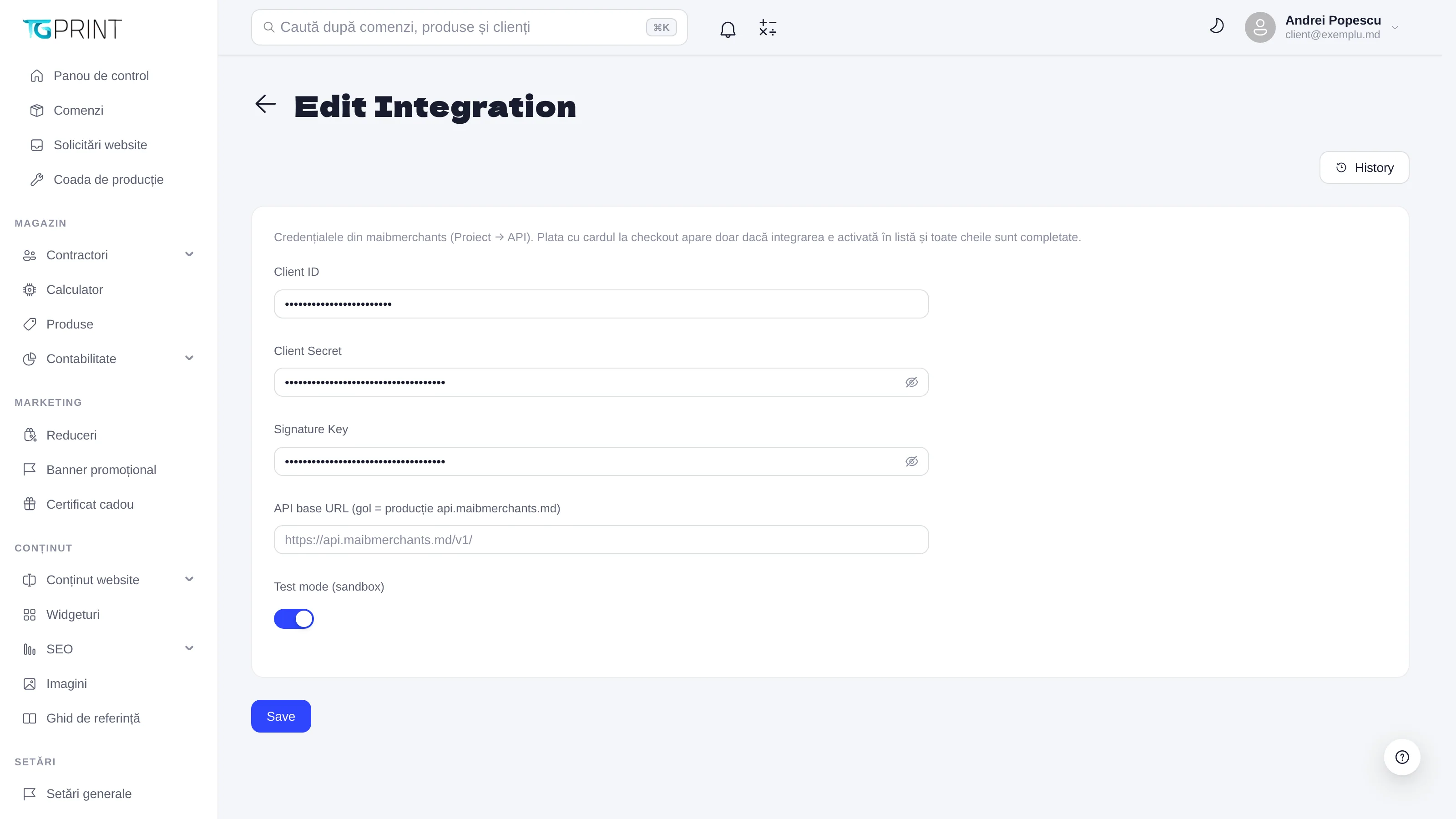
Clicking a card opens Edit integration. The maib example:
- Enter Client ID, Client Secret and Signature Key — the credentials from your maibmerchants account (Project → API). Saved secrets are displayed masked: leave the field empty to keep them.
- API base URL — leave it empty for production (
api.maibmerchants.md); fill it in only if the provider gives you a different endpoint. - Test mode (sandbox) — on while you are testing with test cards; turn it off when you switch to the real credentials. While it is on, the card in the list shows the Test mode label.
- Save, then Test connection in the Connection block, and turn on the toggle on the card. History shows who modified the integration and when.
The couriers similarly ask for the API key and the sender's details (see "The Nova Post, Sameday, InPost, Packeta and DHL Express carriers"); analytics for the identifier of the property or of the container. The integrations set up on the server (Brevo, Cloudflare R2) and those in development have no fields to fill in. You can see the exact fields on each integration's own page.
Note. The steps inside the providers' accounts (creating the project at maib, enabling the API at the courier) are outside the scope of this guide — follow each provider's documentation. Always test a complete order in Test mode (sandbox) before you enable the integration for customers.